
Is your broadband or Wi-Fi slow, unreliable or has it stopped altogether?
Here’s how to put it right, starting with the quickest, cheapest fixes.
- Connection stopped working? Three steps to sort it
- Slow or unreliable connection? Try these fixes
- Know your rights: complaints and compensation
Connection stopped working? Three steps to sort it
- Practical troubleshooting tips to try
- Check your broadband devices are switched on: this includes your router, any Wi-Fi boosters or mesh devices, and, if you have full-fibre broadband, the fibre connection box your router plugs into (this box is called an ONT).
- Check if anyone else is using your Wi-Fi, especially if they are using it for data-hungry tasks like downloading large game files or streaming high-definition videos.
- Try rebooting your router, your Wi-Fi booster or mesh devices, your fibre connection box (ONT) and your phone, tablet or other devices.
- Disconnect or turn off any devices you aren’t using to see if they’re causing the issue.
- If you have made any changes to your home or network just before the issue started, try resetting them to how they were before.
- Check if there’s a wider outage
- Check your provider’s service status webpage or app, or call them.
- You can also check by using outage-checking services. Websites such as Downdetector can show you if your provider’s other customers are experiencing similar problems.
- If your area is affected, check when your provider expects to fix it.
- If there is no listed fault, report it to your provider, as they might not know about it yet.
- Contact your provider
Your provider is responsible for fixing faults, even if another company like Openreach owns the network. Telling your provider about the problem can help get the issue addressed and help you to get any compensation you may be entitled to for the loss of service.
- Tell your provider when the problem started, if it is constant or intermittent, and what checks and fixes you have already tried. If you can, send a record of when your service dropped and how long each interruption lasted.
- Tell your provider if you rely on your connection for telecare or healthcare devices, alarms, or if someone in your household is vulnerable. You might qualify for priority fault repair and your provider can help you register for this. Explain how the fault is affecting you, especially if it is stopping you from working, studying or using essential online services.
- Ask whether your provider can help you stay connected during repairs. For example, they may offer call divert or other ways to use your phone service while the fault is being fixed.
- Ask how your provider will keep you updated and give them a reasonable time to fix the problem.
Your provider might ask you to restart your devices, connect to your router with a network cable, or plug your router into the main phone socket. They might also run checks on your router or line remotely. If they suggest replacing equipment or sending an engineer, ask whether there will be a charge for this (for example, if the fault turns out to be your own devices).
Slow or unreliable connection? Try these fixes
Run a free speed test using an online broadband speed checker before you change anything. This can show you what speed you’re actually getting. Try a few different checkers to make sure you are getting accurate results. Speed can also vary by day and time, so test more than once to get a fuller picture. Speed is not the only factor. Delay or ‘lag’ can also affect live services such as video calls and online gaming.
A slow Wi-Fi test does not always mean there is a fault with your broadband line. Your Wi-Fi speed can be affected by your router, your device, distance from the router, walls and interference. Try the steps below to help fix the problem.
Eight free fixes to try
- Reboot your broadband router. Turn your router off, wait about 30 seconds, then turn it back on. This may help clear temporary glitches and improve your connection.
- Keep your router and devices up to date. Keep your broadband router, your Wi-Fi booster or mesh devices, and your fibre connection box switched on, even when you are not using them, so they can receive automatic updates. Most modern equipment uses relatively little electricity. Keep your devices, apps and web browser updated too, as updates can improve security and performance.
- Move your broadband router. Wi-Fi works best when there are fewer obstacles and walls between your router and your device, so try to keep the path between them as clear as possible.
Avoid radiators, bookcases, fish tanks and thick walls, for example. The best location for your router is generally out in the open, off the floor, and roughly central in your home. If it has adjustable Wi-Fi aerials then try pointing them in different directions.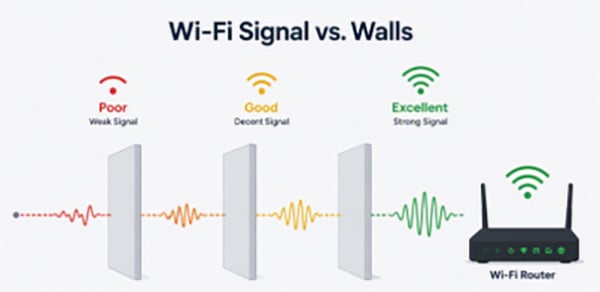
- Keep the router away from other electrical devices. Microwaves, baby monitors, cordless phones, halogen lamps, dimmer switches, and speakers can all interfere with your signal.
- If possible, use a network cable instead of Wi-Fi. A wired connection is usually faster and more reliable. If your computer or connected device has an Ethernet socket and doesn't need to move around, plug it straight into the router. Use a cable that can handle your broadband speed.
- Reset any recent changes. Have you recently moved your router, changed your phone or broadband setup or plugged in new electrical items? Small changes at home can affect your broadband. Try reversing the change, if you can, then test your speed again.
- Disconnect devices you’re not using. Phones, tablets, smart TVs and other devices can sometimes use your Wi-Fi even when you aren’t using them. Temporarily disconnect anything you’re not using, especially if it is downloading, updating or streaming, to see if this is the root cause.
- Check your devices. If one device is much slower than the others, the problem might be with that device rather than your broadband. Restart it, close apps you are not using, and check it has the latest updates and security software.
If your router plugs into a phone socket: Make sure it's connected to the main phone socket in your home. This advice applies if you use an older copper or part-fibre broadband service. Speak to your provider for advice. If your socket does not have a built-in filter, they might tell you to use a microfilter to stop interference. Avoid extension leads where possible. If you must use one, keep it short and good quality. You may also want to talk to your provider about moving to a full-fibre service which may offer higher speeds and better reliability.
Fixes that might cost money
If the eight free tips above have not fixed your broadband problems, then consider these four options, which might involve paying for new devices or services:
- Upgrade your router: An older router could be slowing you down. Ask your provider, as they might offer a new router for free. However, be aware that some providers might charge for this. You may also be able to buy your own router, but it can be harder to set up and your provider may not support it, so check with them first.
- Check if newer broadband products are available: Look at our guide to choosing the right broadband for your needs. Full-fibre broadband is generally faster and more reliable than older services which rely on a copper phone line. Broadband that uses the 5G phone network or satellite connections might also be suitable for some customers.
- Consider installing a mesh network: Two or three Wi-Fi mesh boxes placed around your home might help your Wi-Fi to reach more rooms. These can be good for larger homes with areas of weak signal, but they are also pricier and can make issues worse if you add too many. Always follow the manufacturer’s guidance for best results. Your provider may be able to offer you additional Wi-Fi mesh devices as part of your broadband package, or you can also buy them separately.
- Consider Wi-Fi boosters and powerline adapters: Boosters help push your signal into weak spots of your home, but they can also affect your speed. Powerline adapters send your connection through your home's electrical wiring, but results depend on how your wiring is set up. For either, check the adapter has a UKCA or CE safety mark before you buy it.
Know your rights: complaints and compensation
Ask about compensation for faults or delayed repairs
Ask your provider whether they will offer an account credit or compensation while the fault is being fixed. If repairs take a long time (for example if cabling work is needed in your street or permission is needed to access land), ask whether they can offer any additional account credit.
If your provider has signed up to our automatic compensation scheme, you should be entitled to compensation in certain situations. This can include where:
- you report to your provider that your service has stopped working and it is not fully fixed after two full working days;
- an engineer does not turn up for a scheduled appointment, or the appointment is cancelled with less than 24 hours’ notice; or
- your provider promises to start a new service on a particular date but fails to do so.
Check if you have a minimum guaranteed download speed
Most providers have signed up to the Broadband Speeds Code of Practice. Under this scheme, they must give you clear speed information before you sign up, including a minimum guaranteed download speed. If your speed falls below that minimum and your provider cannot get your speed above that level within 30 calendar days, you may be able to leave your contract without penalty.
Raise a formal complaint about your problem
Follow your provider's formal complaints procedure. If it's still unresolved after six weeks, or if your provider has sent you a deadlock letter, you can take your complaint to a free, independent dispute resolution scheme.
Tell Ofcom
We don't have powers to investigate or resolve individual complaints, but if you report faults and delayed repairs through our monitoring form, this helps us spot patterns and take action to address wider problems.
Related content